K510WL Support
Wireless Keyboard
Turn it over and read the model number first. We made this keyboard for more than a decade and the generations do not all work the same way - the receiver changed, the pairing steps changed, and the battery door changed. That one string on the underside is the answer to almost everything below, and it is the first thing we will ask you for.
Start here
- Which one do you have?
-
TK5216 (sometimes with a revision reading TK532G) is the
4th generation, the current one. TK-501G,
sometimes badged 510W, is the 2nd or 3rd.
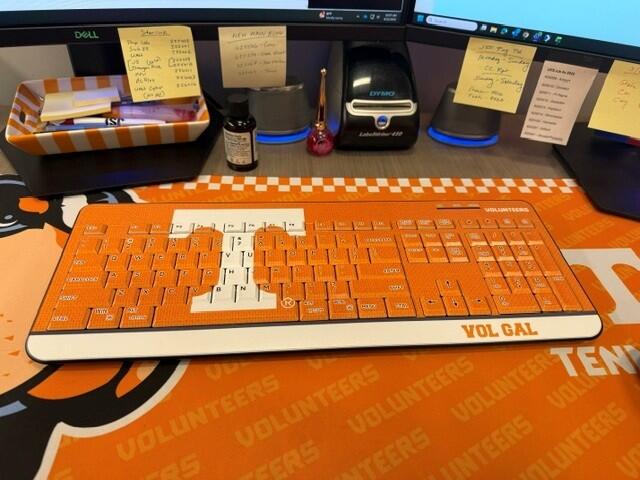
No label left on it? The front tells you nearly as much: a row of navigation keys above the F keys means an older generation, and no such row means the 4th.
- Lost the receiver? Start here, not with a purchase
- It is the most common thing we hear about by a wide margin, and it is
usually still plugged into something. Three places, in order:
1. The slot on the underside of the keyboard - that is what it is for, and people check it last. 2. Still in a USB port, often at the back of a desktop or in a hub you stopped using. 3. The pocket of the bag it travelled in.
It is a nano receiver and sticks out of a port by about the thickness of a coin, which is exactly why it gets missed rather than lost.
- If it really is gone
- Write to support@keyscaper.com and tell us two things:
the model number from the underside, and roughly
when you bought it. Receivers are not the same across generations,
and the rest is ours to work out - there is nothing further for you to look
up on the keyboard itself.
A product change in late 2024 means we cannot supply a receiver for every keyboard we have made. If yours turns out to be too early, write anyway. We keep upgrade offers and discounts for exactly that case and they are not advertised anywhere.
A receiver from an office supply store will not work - those are paired to their own keyboards. So is a spare from a second Keyscaper keyboard.
- Pairing by hand
- Normally there is nothing to do. When the two will not find each other, and
your label reads TK5216:
1. Put fresh batteries in. 2. Hold Esc and = together for three seconds - a red pairing light comes on in the top right corner. 3. Plug the receiver into a USB port and hold the keyboard two to three inches from it. 4. A few seconds later the Num Lock light comes on. That means you are paired.
Older keyboards pair differently. If the underside does not read TK5216, write to us with what the label says and we will send you the right sequence.
- The four keys in the top right corner
- They are browser keys, from the era when a web page took
real time to load - which is also why one of them cancels. The two triangles
are the ones people ask about, and they are not scroll:
Up triangle is Back. Down triangle is Forward. The page with an X is Cancel, which stops a page that is still loading. The page with a circular arrow is Refresh.
- Batteries, and the thing that looks like a fault
- Two AAA cells in the compartment on the underside. The
door works differently by generation: on the 4th you press the plastic door
gently toward the top of the keyboard, and on the 2nd and 3rd you slide it
toward the top and it comes away.
New batteries and still nothing? That is the single most common thing people write to us about after the receiver, and it is usually not the batteries. Fresh cells do not re-pair a keyboard that has lost its receiver link - pair it by hand, above.
- Two that look like breakage and are not
-
Pages scroll sideways on their own. Tap Scroll
Lock. A stuck or latched Scroll Lock makes a spreadsheet move the
whole sheet instead of the cell, which looks a lot like a broken keyboard.
Two keyboards, and now neither works. The receivers have almost certainly been swapped. They are paired individually at the factory. Pair each keyboard to one receiver at a time, with the other keyboard out of the room if you can manage it.
A few honest notes
| Models | TK5216 (4th generation) · TK-501G (2nd / 3rd) Printed on the underside. It is the first thing we will ask for. |
|---|---|
| Connection | USB-A nano receiver, included Paired to this keyboard at the factory. Not interchangeable with another unit's. |
| Batteries | 2 x AAA |
| Size and weight | 17.75 x 6.75 x 0.75 in · 567 g |
| Works with | Windows and Mac, no driver needed On a recent Mac with only USB-C ports you will need a USB-A adapter. Nothing else changes. |
| Case | ABS plastic |
| FCC ID | PNJ510WL |
This keyboard is no longer in production. We still answer for it - if yours is giving you trouble, write to us and we will see what we can do.
Questions
What devices work with the Wireless Keyboard?
It works with any computer or laptop that has a USB-A port -- just plug in the included wireless nano-receiver. It's a 2.4GHz wireless keyboard (not Bluetooth), with low-profile keys and a full-color team design across the whole board.
Do I need to install any software or drivers to use the Wireless Keyboard?
It's plug-and-play -- pop in the included USB nano-receiver and start typing, with no software or drivers to install. The receiver tucks into storage on the back of the keyboard when you travel.
Are batteries needed for the Wireless Keyboard, and are they included?
It's wireless and runs on 2 AAA batteries (included) -- no charging cable needed.
Is there a warranty on the Wireless Keyboard?
Yes -- it's backed by a one-year Keyscaper warranty against manufacturing defects in materials and workmanship under normal use. For warranty claims or product questions, email support@keyscaper.com or use the contact form at keyscaper.com, both reach the same place.
Questions, or something not right? support@keyscaper.com. A real person reads it.
Keyscaper K510WL